Getting Started
When Teluyo opens, the start screen offers the main ways to begin a project.
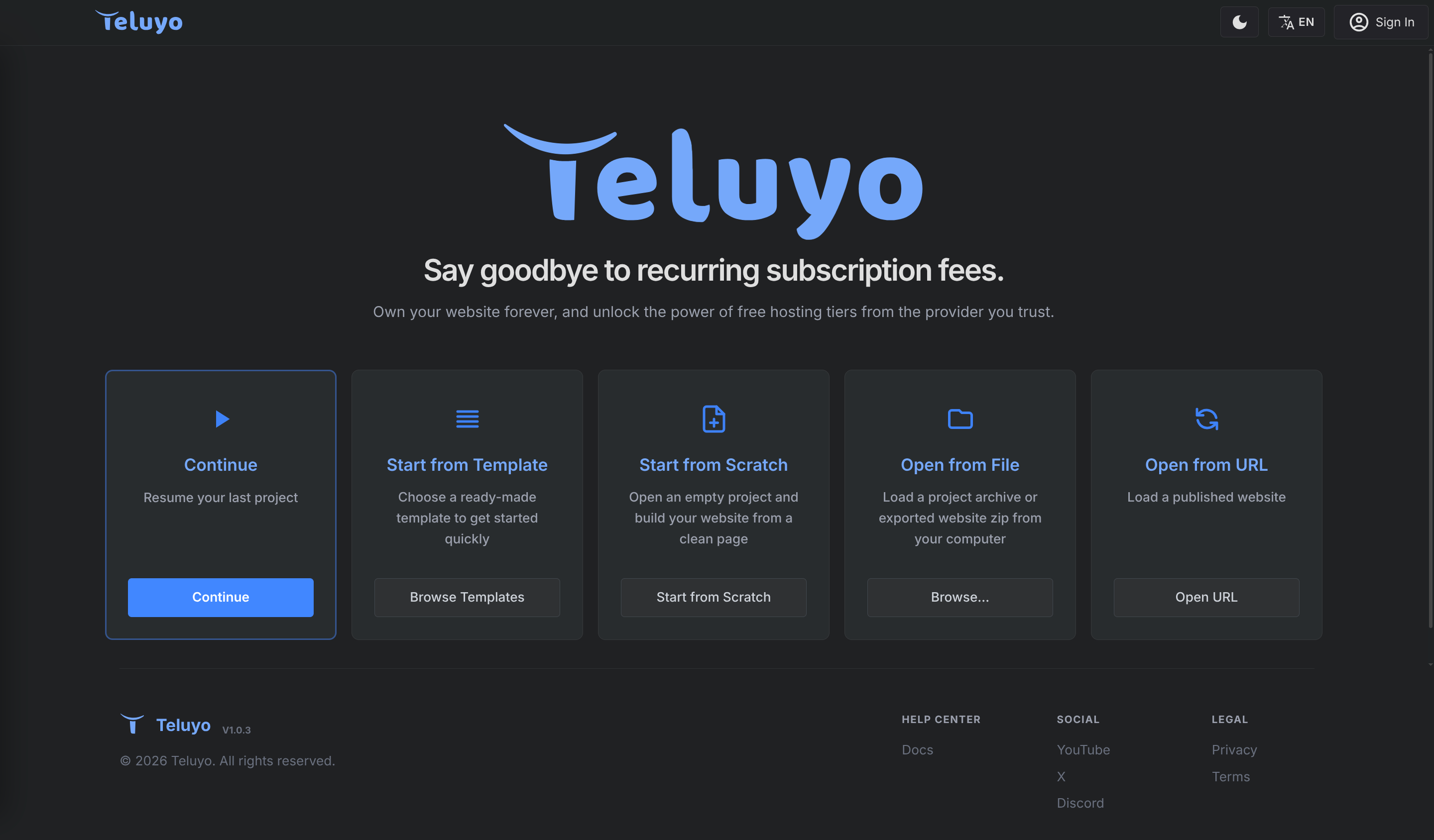
Start Options
Continue
If a previous session exists, the start screen shows a Continue card. This resumes the locally saved project from the browser.
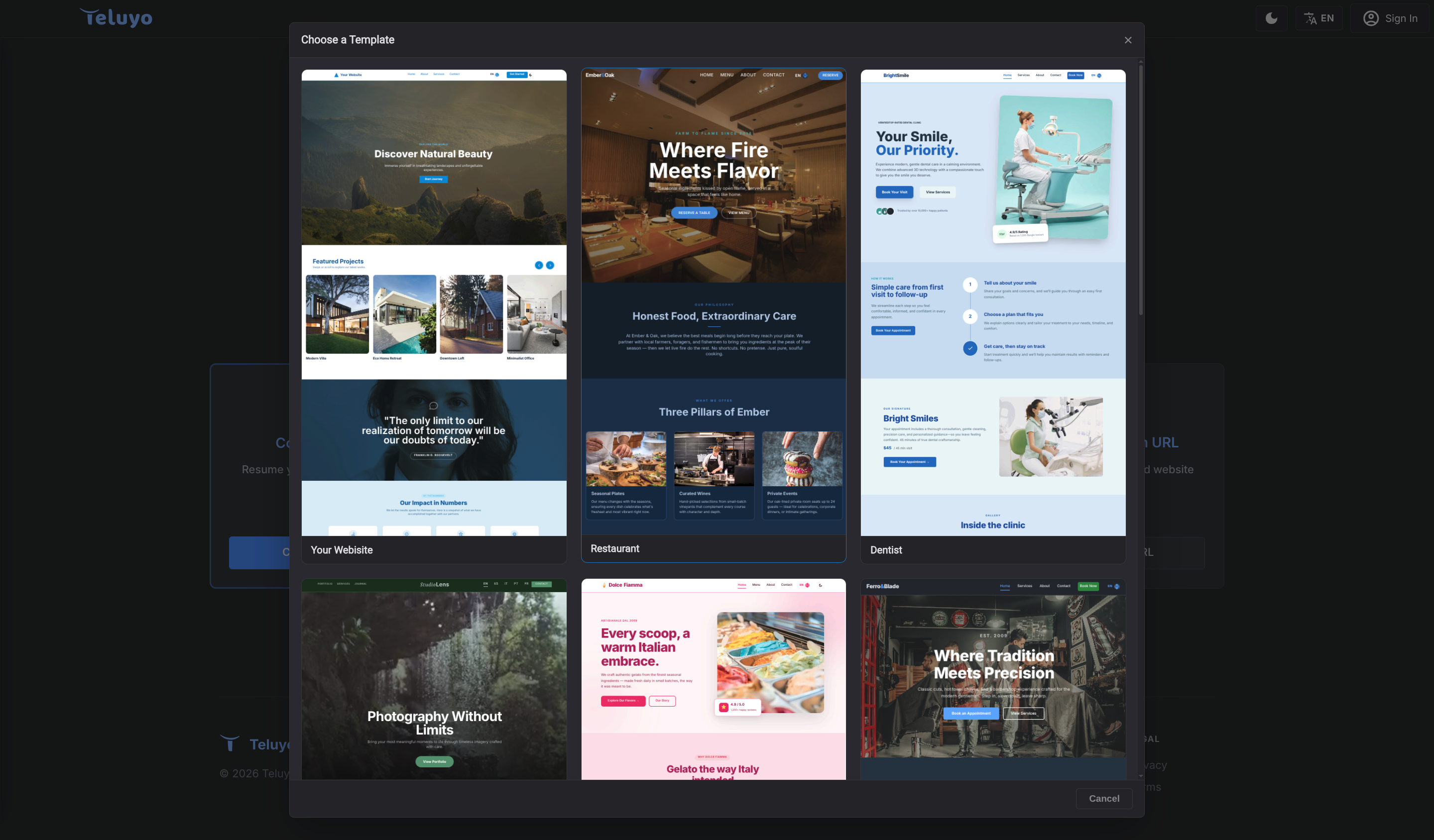
Start From Template
Use Browse Templates to choose a ready-made website. The template setup screen lets you choose a font, color theme, enabled languages, and default website theme before loading it into the editor.
Start From Scratch
Use Start from Scratch to open a clean project. This is useful when you want to build the page manually with blocks, quick elements, and custom files.
Open From File
Use Browse to load a local ZIP. Teluyo can import project archives and exported website ZIPs.
Open From URL
Use Open URL to import a published website. The import flow looks for pages, assets, and linked files. If assets are remote or missing, the importer can ask for an assets ZIP or keep assets in read-only remote mode.
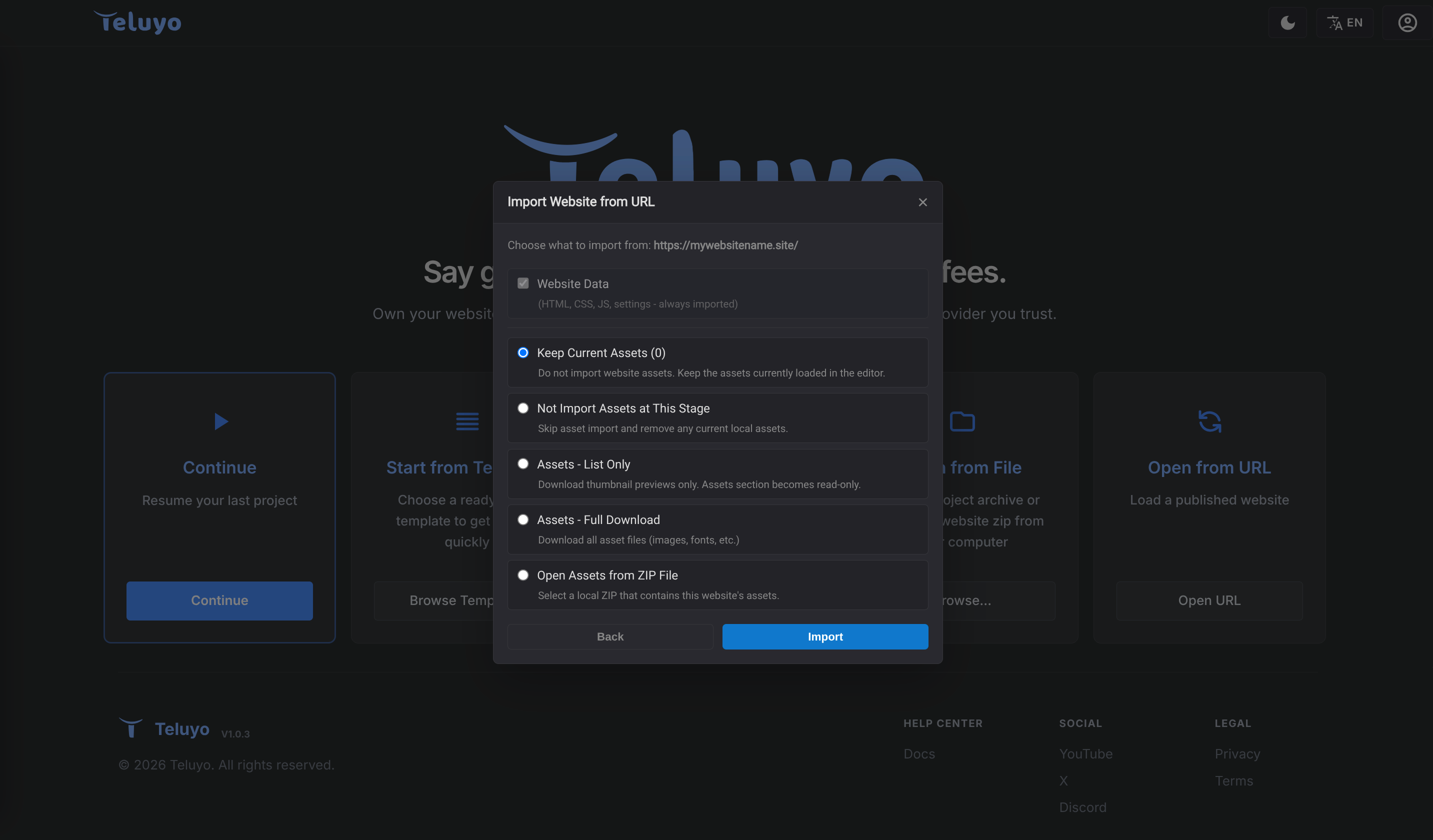
When importing from a URL, Teluyo lists the assets it detects before bringing them into the project. At this stage you can keep the current assets list without importing the files yet, which is useful when you only want to inspect the detected resources or continue with remote/read-only assets for the moment. You can import the assets later from the read-only assets menu or by providing an assets ZIP.
Start Screen Controls
The start screen also includes app-level controls for UI theme, interface language, and account login. These controls are separate from the website's exported theme and content languages.
Local Saving
Teluyo automatically saves the current session locally in the browser. The top bar shows save status such as Saving and Saved locally once a project is open.