Workspace Overview
The editor workspace is split into three main areas: the left file and block panels, the center preview canvas, and the right editing panels.
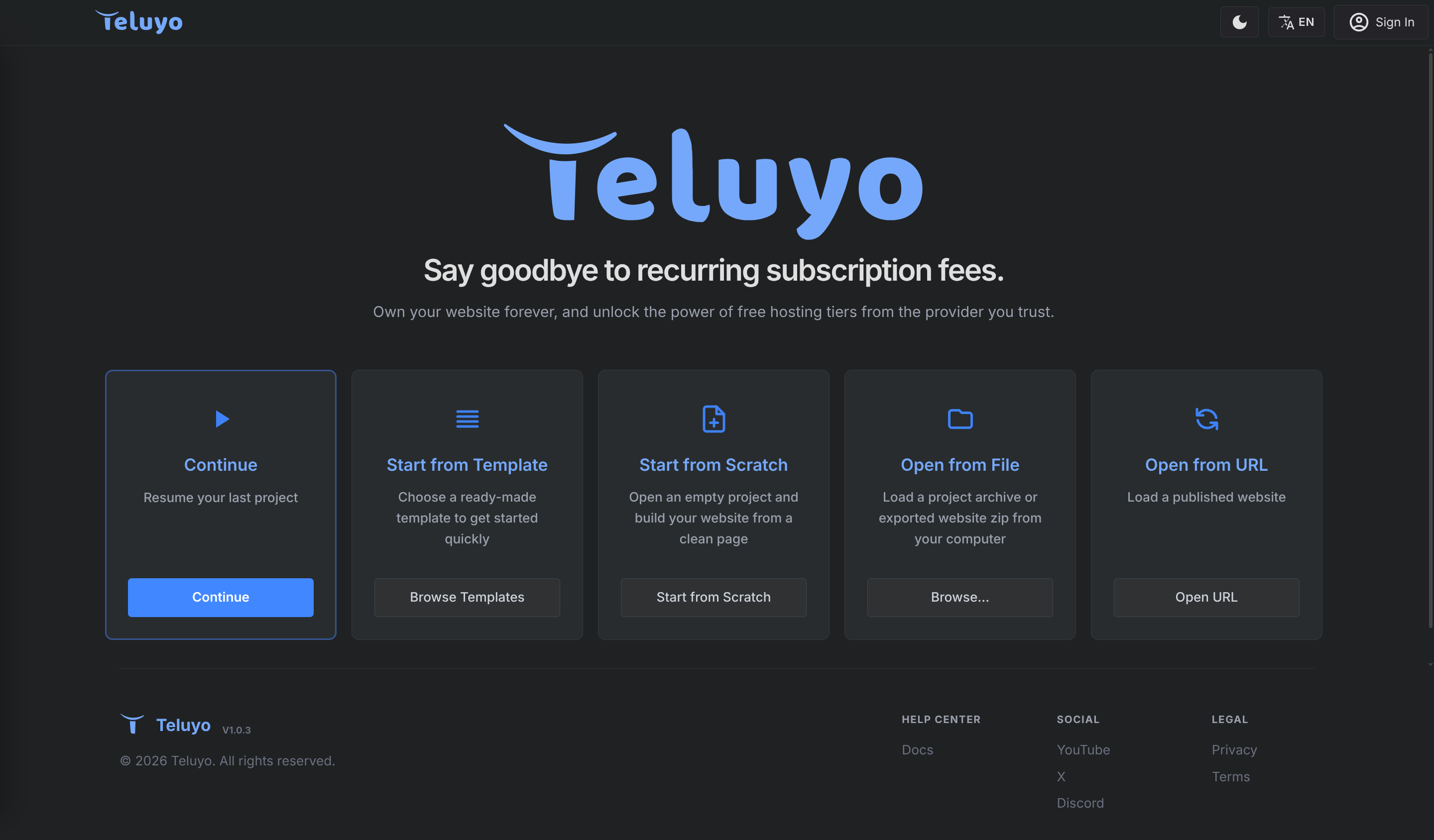
Top Bar
The top bar contains project actions, AI tools, language tools, preview controls, responsive device controls, visibility helpers, undo and redo, account controls, and save status.
Common actions include:
- Open the project menu.
- Reload the preview frame.
- Toggle edit mode and preview mode.
- Switch between desktop, tablet, mobile, and fullscreen canvas sizes.
- Force hidden elements to be visible while editing.
- Hide or restore section toolbars.
- Undo and redo changes.

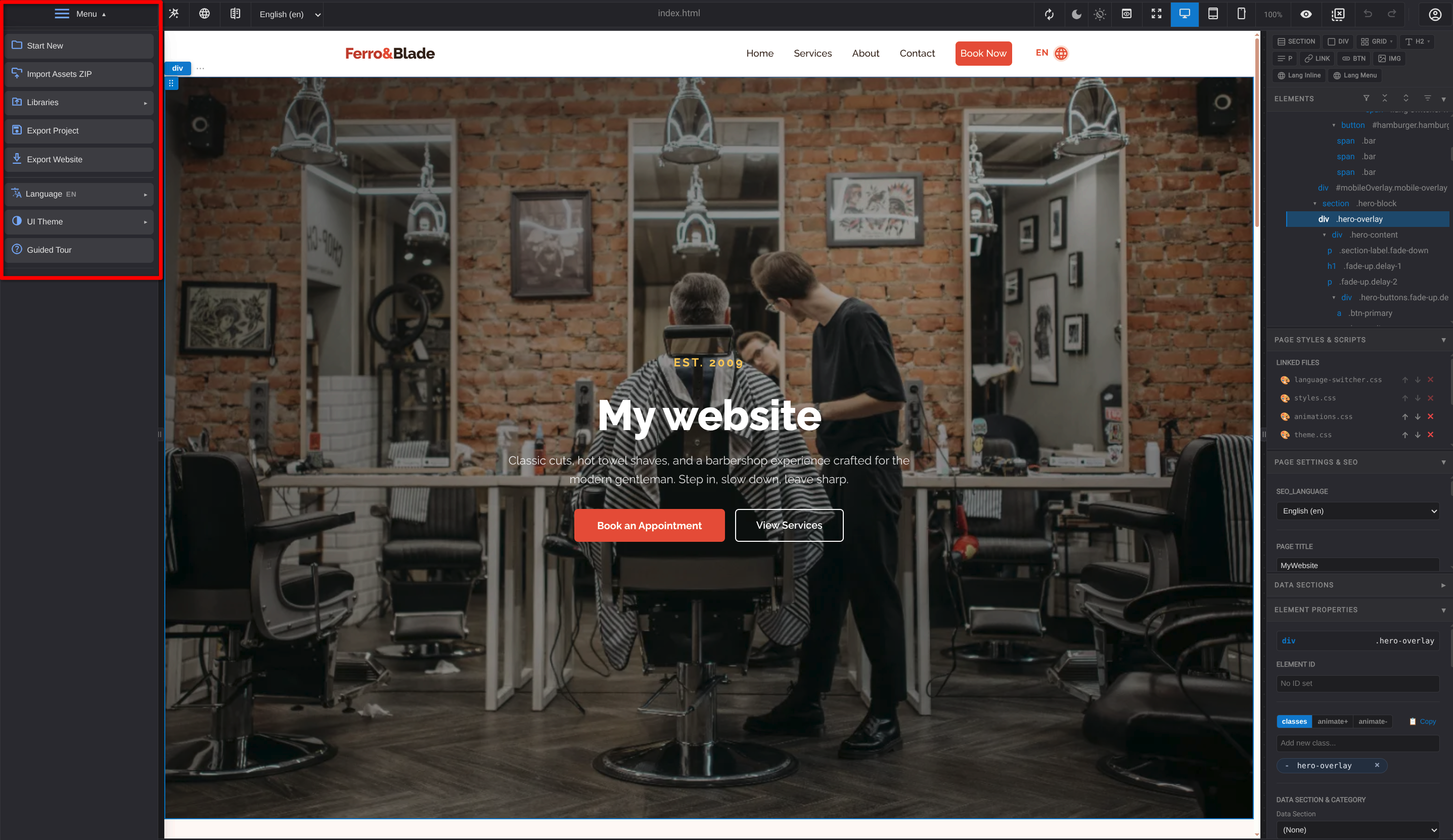
Main Menu
The main menu opens from the Teluyo logo in the top bar. Hover over the logo first, then click it to show the project menu.
From the main menu you can start a guided tour, access project-level actions, manage import and export options, and open library import/export tools when available for the account. It is the central place for actions that affect the whole project rather than the currently selected element or page.
Left Sidebar
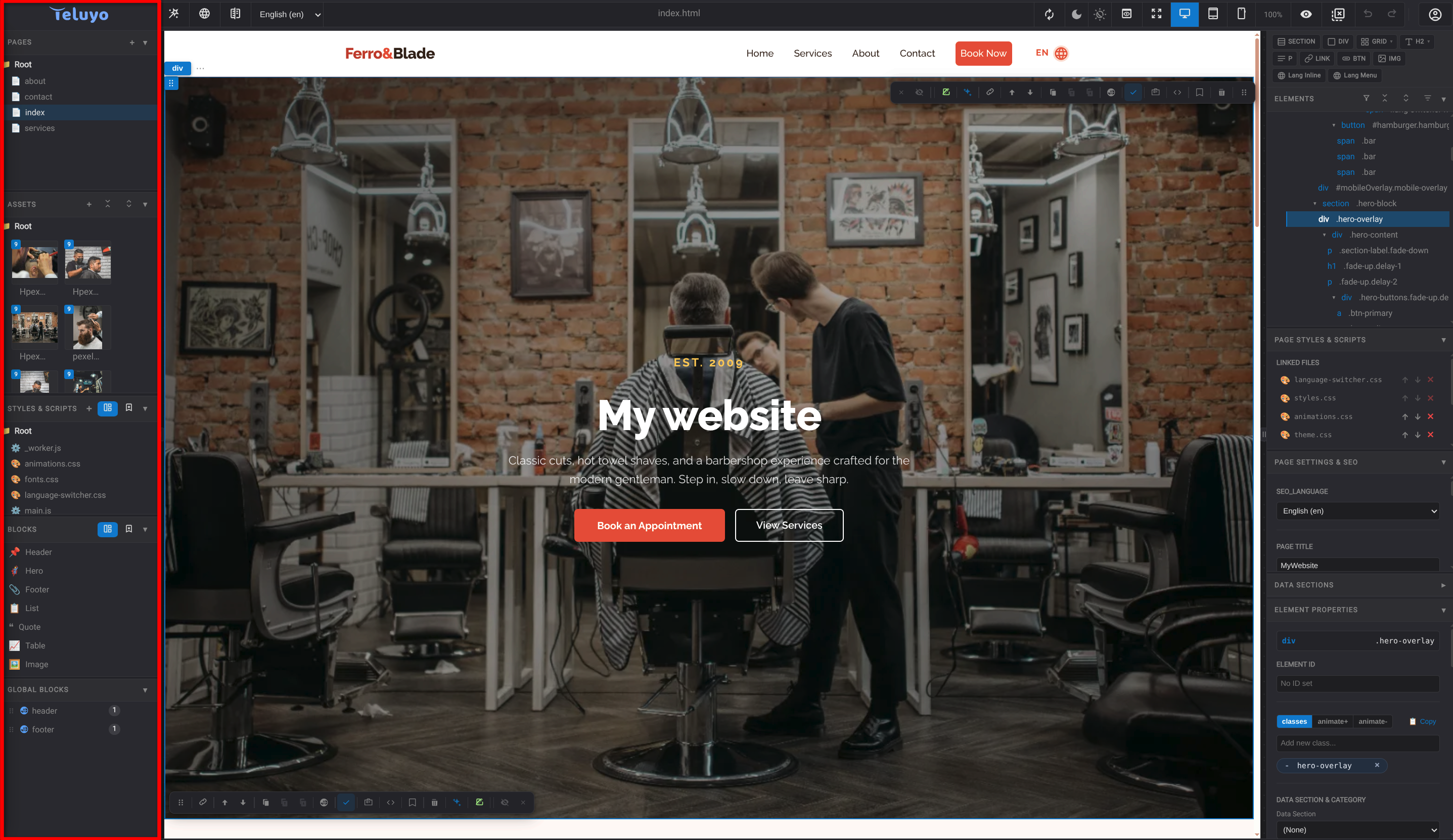
The left sidebar contains:
- Pages: HTML pages in the project.
- Assets: uploaded images, video, audio, and other files.
- Styles & Scripts: project CSS and JS files, plus a script library mode.
- Blocks: ready-made block categories and personal block library.
- Global Blocks: reusable sections that stay synced across pages.
Each pane can be collapsed, resized, and restored.
Center Canvas
The center canvas displays the active page. In edit mode, users can select elements, edit text inline, drag blocks and elements into the page, and use section controls. In preview mode, the page behaves more like the exported website.
Right Sidebar
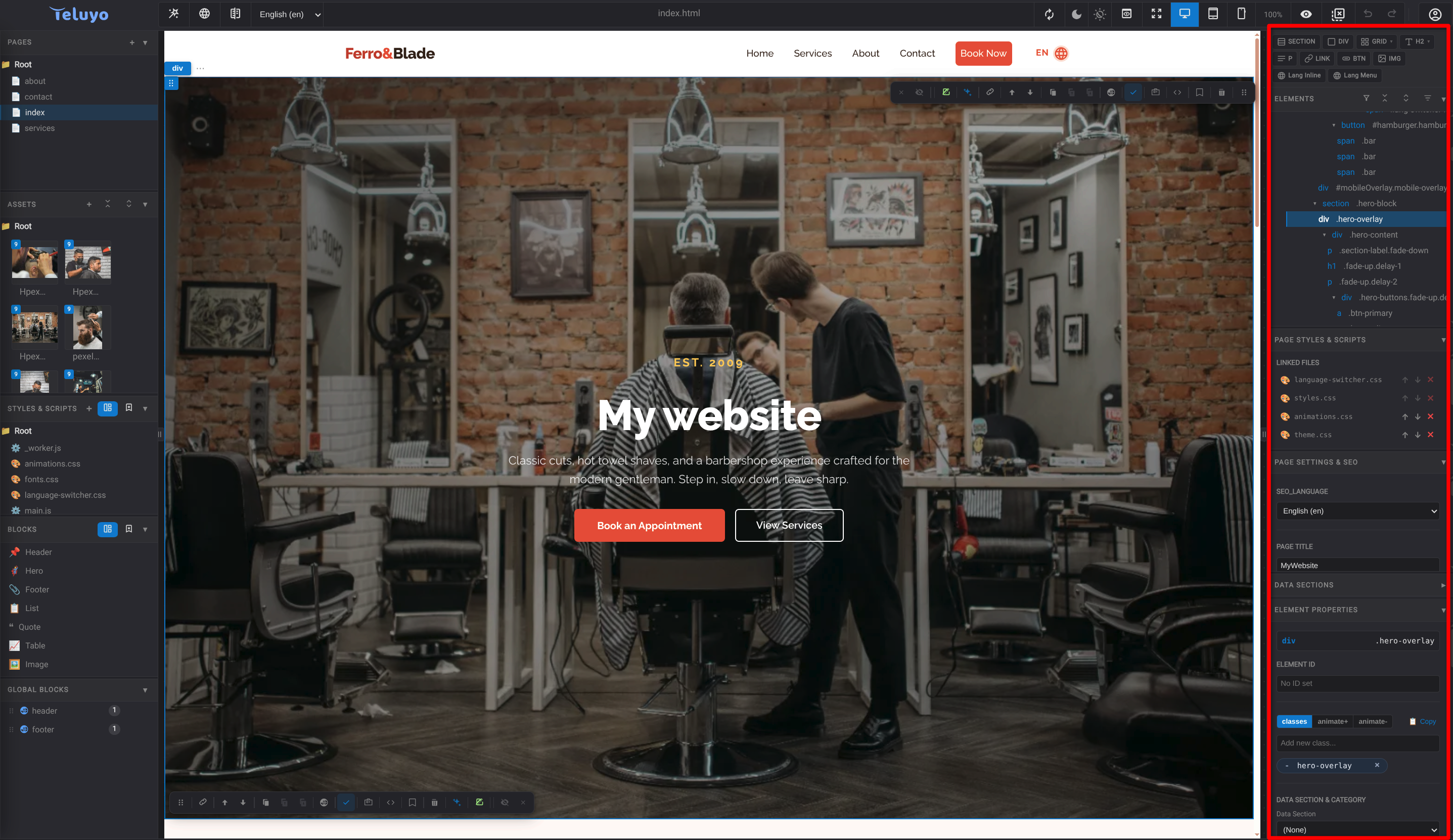
The right sidebar contains:
- Quick Elements Bar for inserting common HTML elements.
- Elements tree for selecting page nodes.
- Page Styles & Scripts for linking CSS and JS files to the current page.
- Page Settings & SEO for metadata and social sharing fields.
- Data Sections for category-based filtering and data-driven sections.
- Element Properties for styles, attributes, classes, events, links, images, and translations.
Preview Mode
Preview mode locks editing panes and lets scripts and interactions run closer to the exported experience. Enable it with the preview button in the top bar when you want to test the page as a visitor would see it.
You can also enter preview mode temporarily by holding the Alt key. While the key is pressed, the canvas behaves like preview mode; when you release it, Teluyo returns to normal editing. Some script-driven changes can be kept after preview if a section is configured to keep changes.