Building Pages
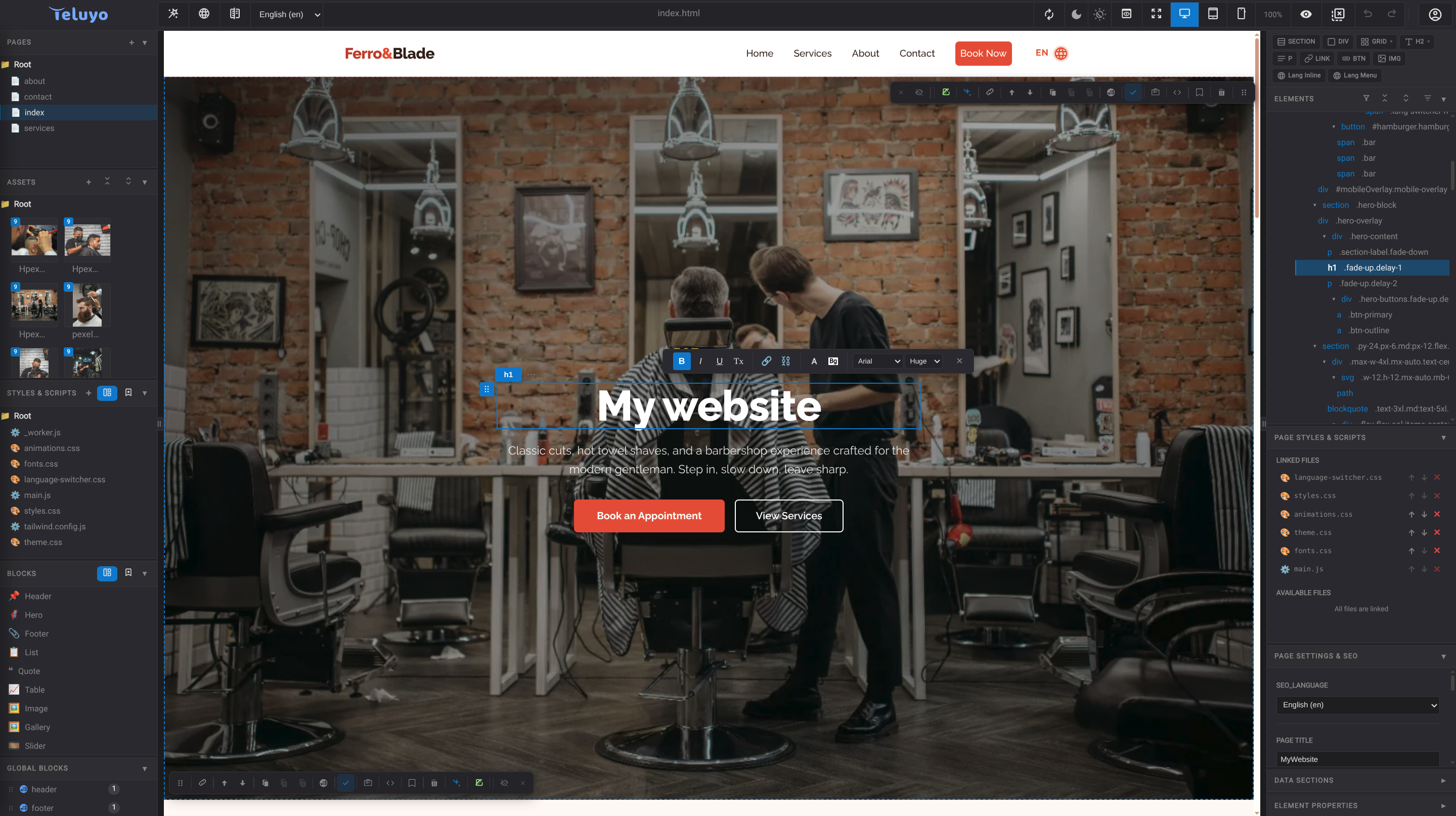
Teluyo supports visual page building with blocks, quick elements, section controls, reusable libraries, and direct HTML editing.
Blocks
The Blocks pane opens a slide-in panel with categories such as header, hero, features, gallery, pricing, FAQ, contact, footer, and other common website sections. Blocks can be previewed with font and theme filters before dropping them into the page.
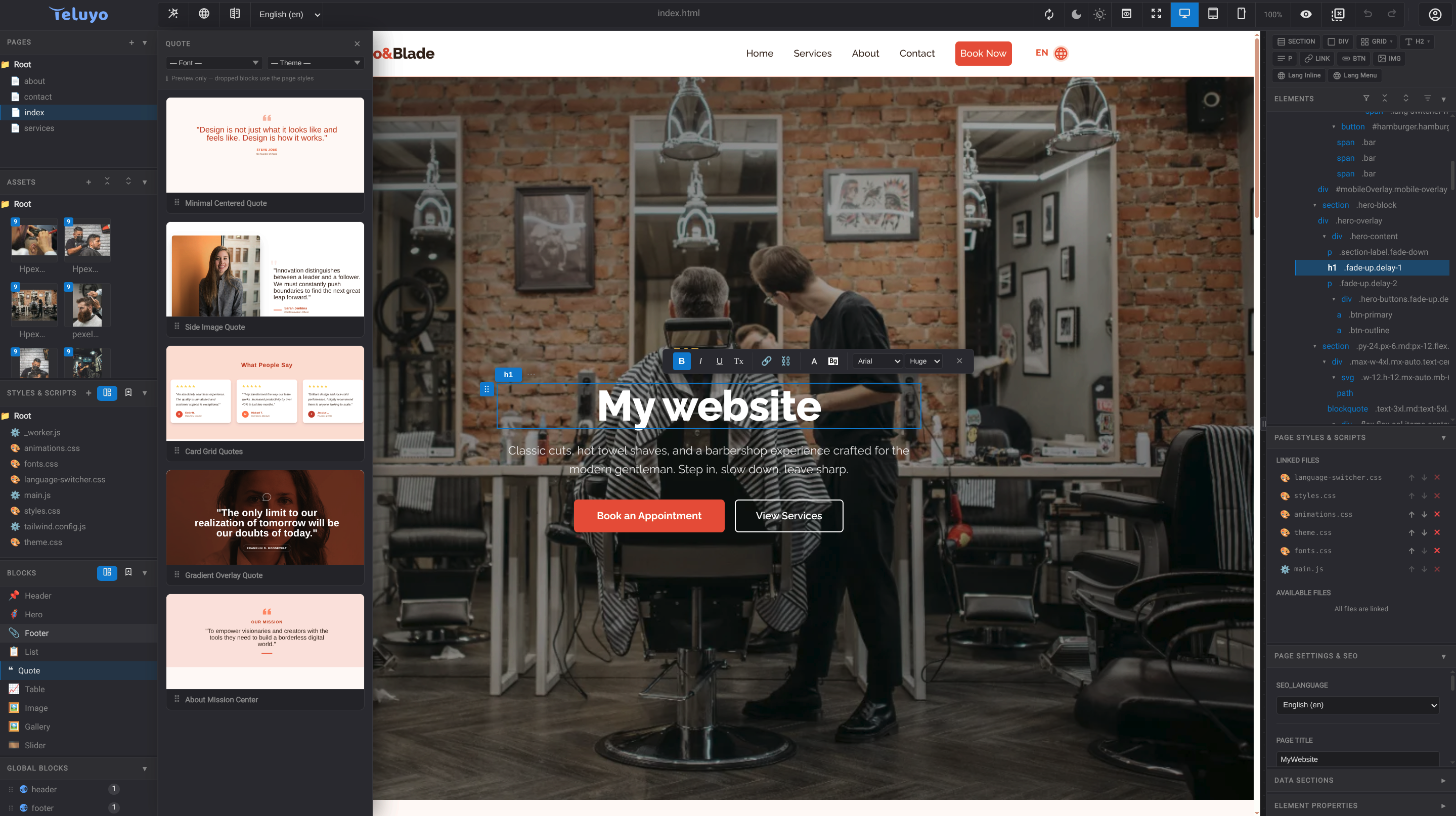
When a block is inserted, it inherits the active page styles rather than keeping only the preview styling from the block panel.
Quick Elements
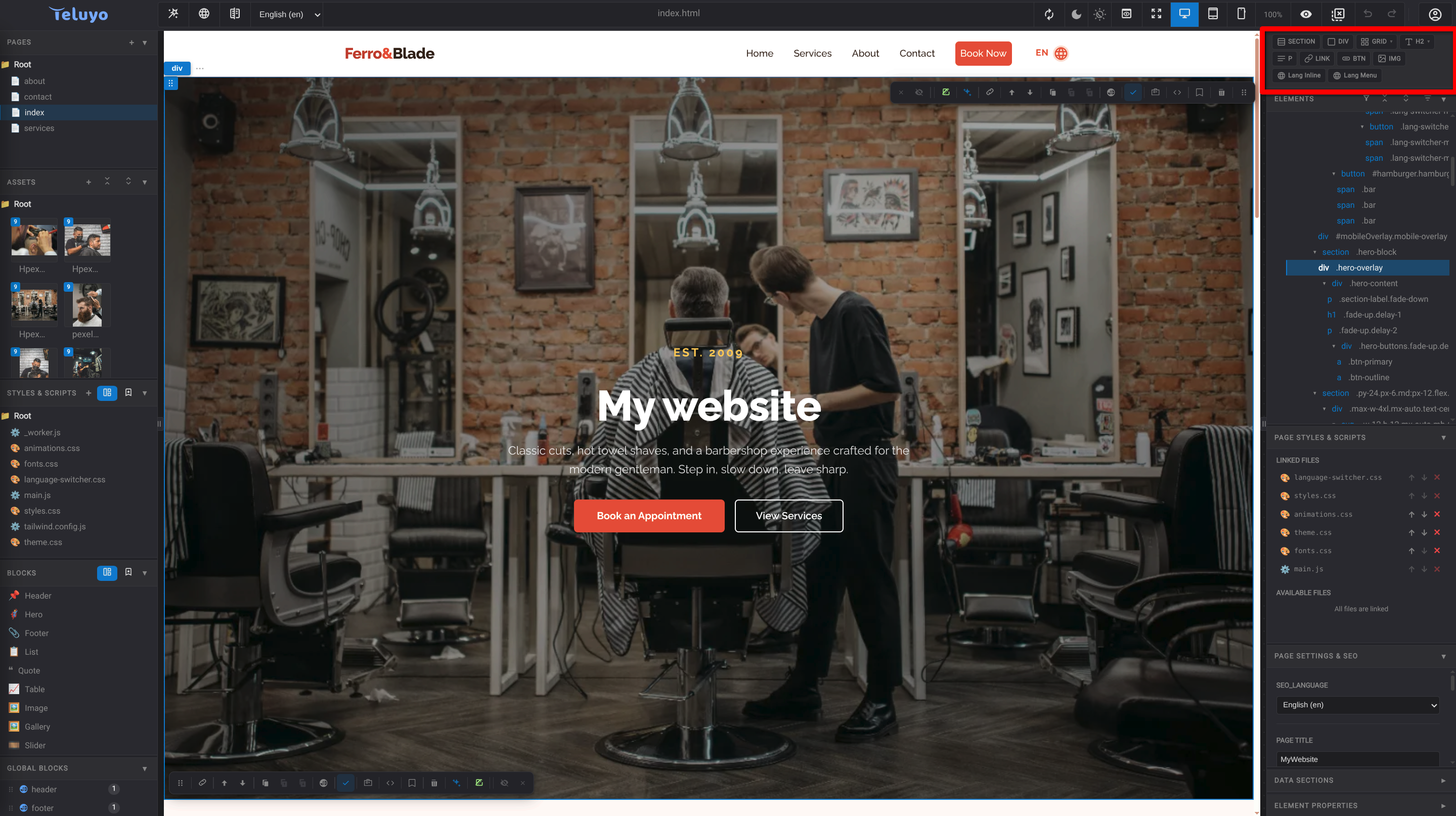
The quick elements bar inserts common elements:
- Section
- Div
- Grid
- Headings
- Paragraph
- Link
- Button
- Image
- Language switcher elements when i18n is enabled
Section Controls
When a section is selected or hovered, Teluyo shows section controls for common actions:
- Move a section up or down.
- Edit section content.
- Set a section name or anchor ID.
- Ask AI to edit the section.
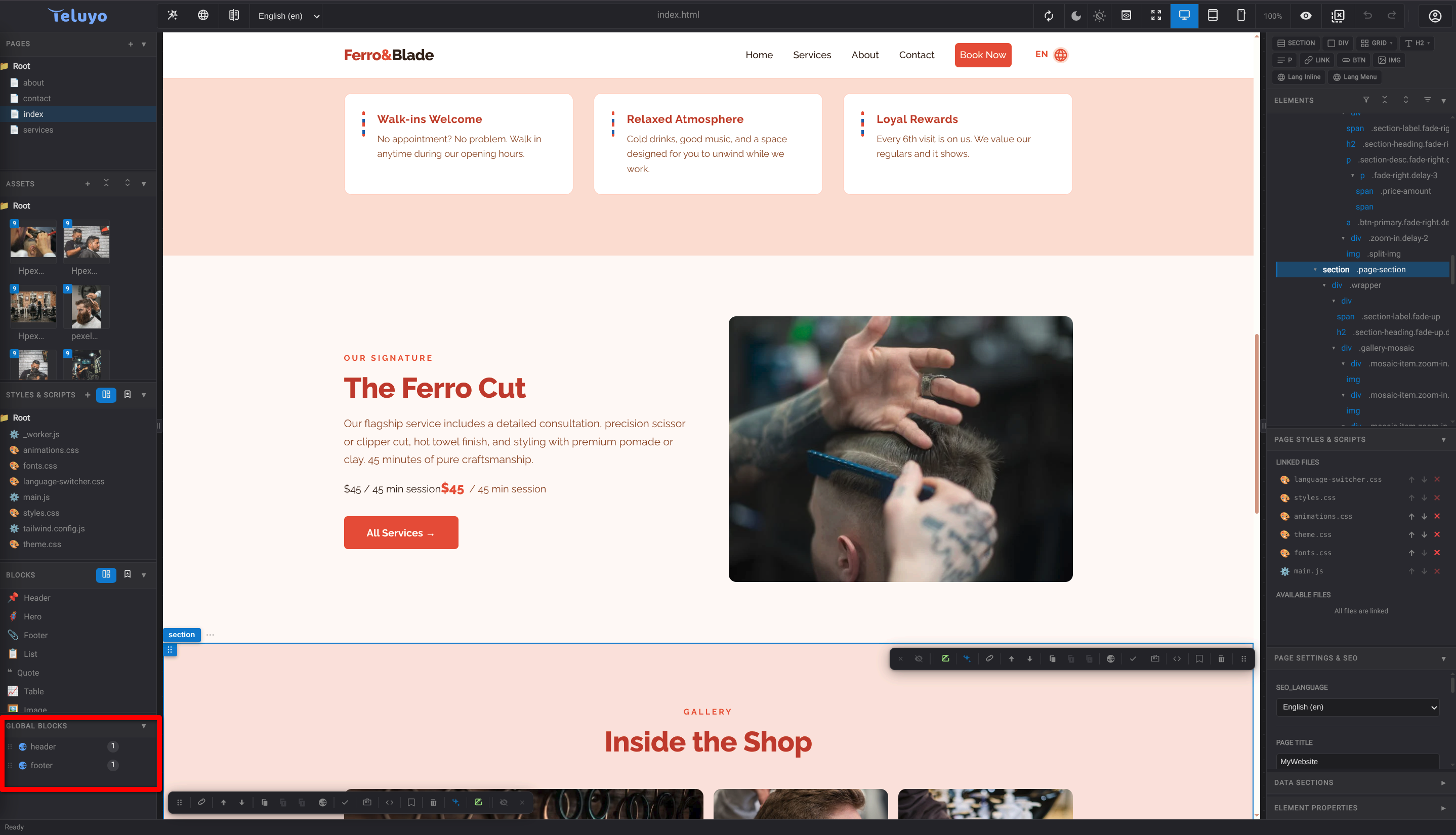
- Save as a global block.
- Save to the block library.
- Configure keep-changes behavior after preview.
- Mark a section as cookie-conditional.
- Edit section HTML code.
- Delete or hide section toolbars.

Global Blocks
Global blocks are reusable sections synchronized across the project. Save a section as a global block when the same content should appear on multiple pages and stay linked.
Block Library
The personal block library stores reusable section snippets that can be inserted later. Library blocks are copied into the page when used.
Direct HTML Editing
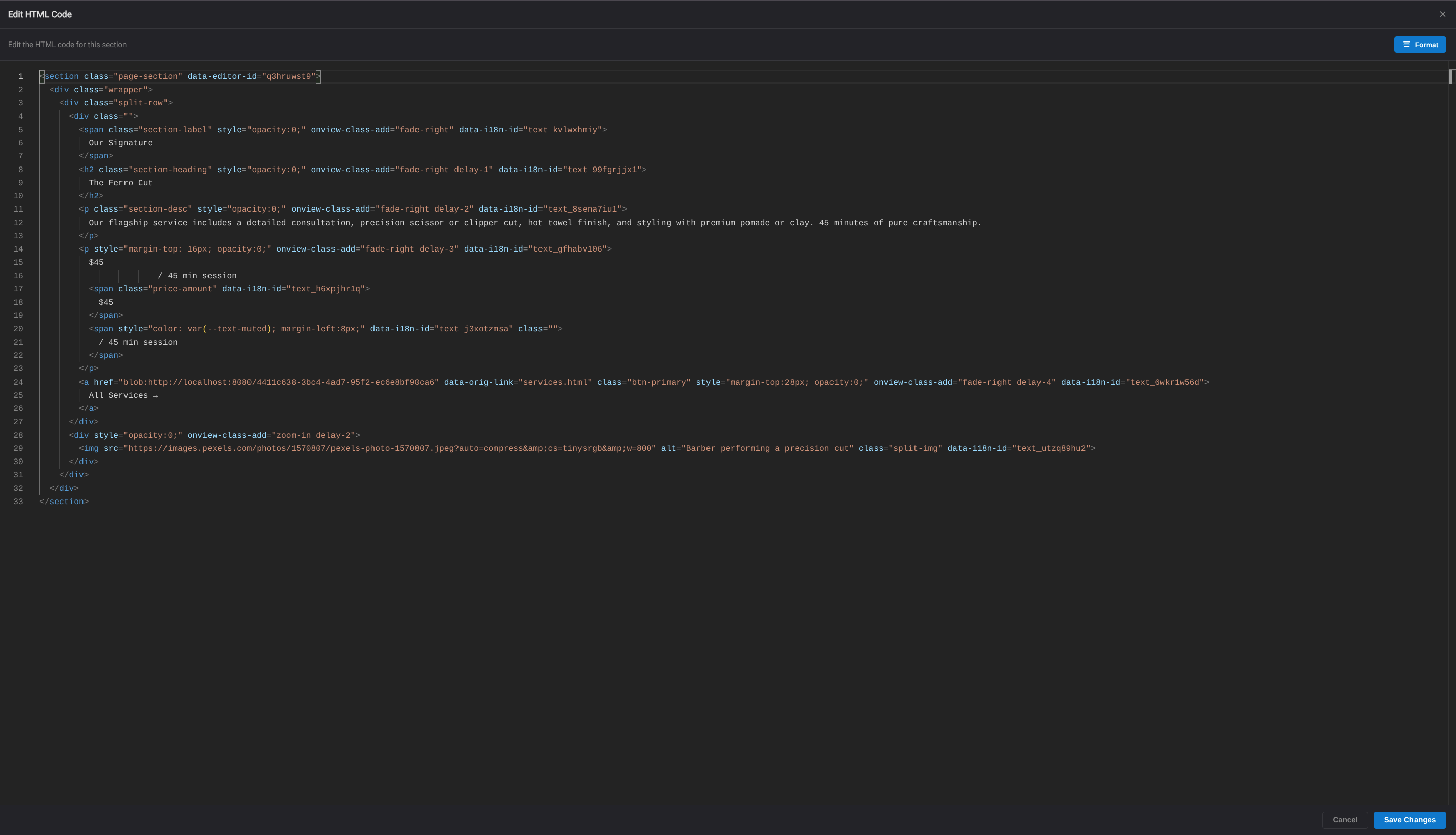
Users can edit HTML code for a section, an element, or a page using the HTML code editor modal.
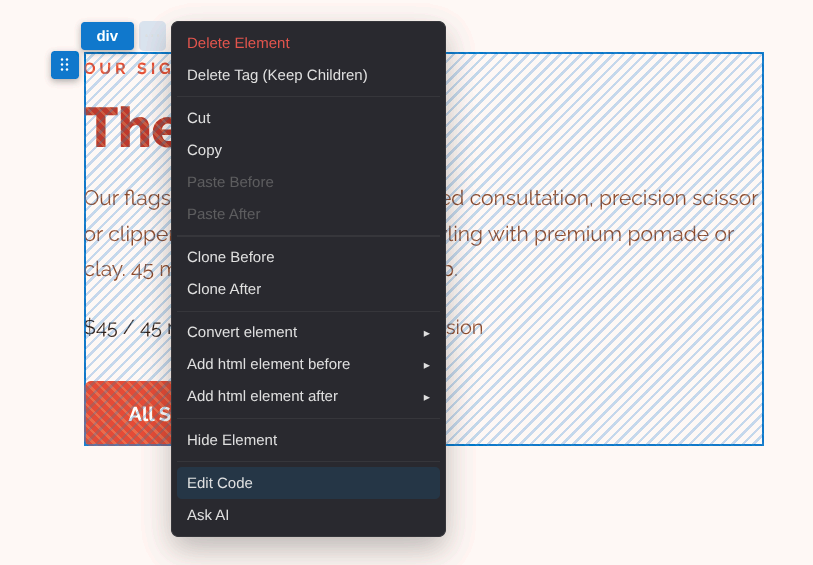
To edit the HTML of a specific element, open the element menu and choose the HTML editing option. The same menu can be opened by right-clicking the element on the page, clicking the ... button for the selected element, or right-clicking the element in the element tree.
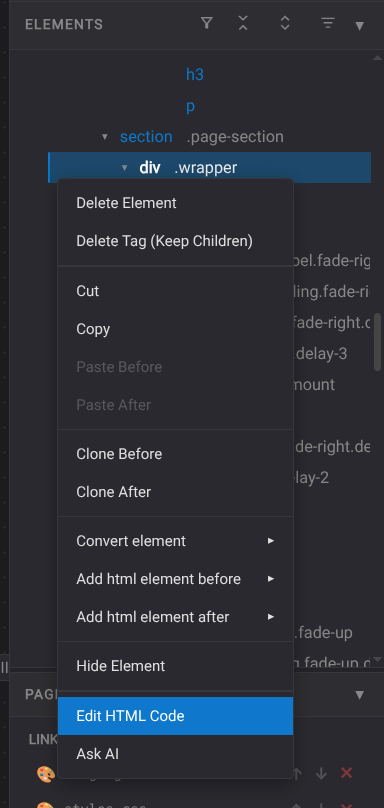
The element tree also supports direct access to the same command. Right-click an item in the tree when it is easier to select the element from the page structure than from the canvas.
For sections, use the section toolbar HTML button to open the editor for the whole selected section.

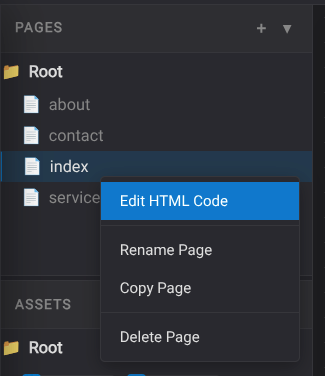
The full page HTML can be opened from the page menu when the account has an active license. This is intended for advanced edits that affect the complete page document.
When the HTML editor opens, it shows the selected element, section, or page code in a modal editor. Make the needed changes, then apply them to update the project.