Editing and Styling
Most editing happens by selecting an element in the canvas or element tree, then using the right sidebar.
Element Tree
The Elements panel shows the structure of the current page. It supports expanding, collapsing, first-level view, hidden-element warnings, and saved filters by class or attribute.
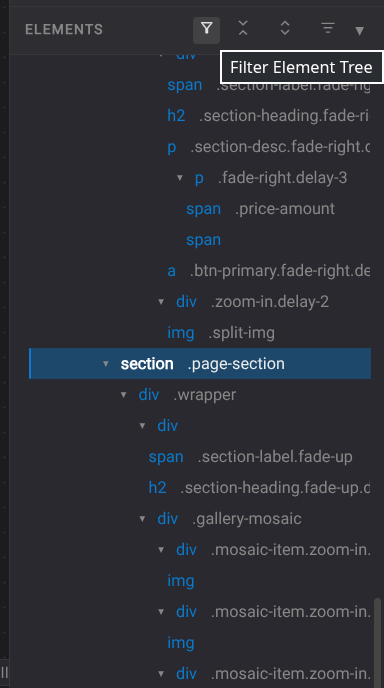
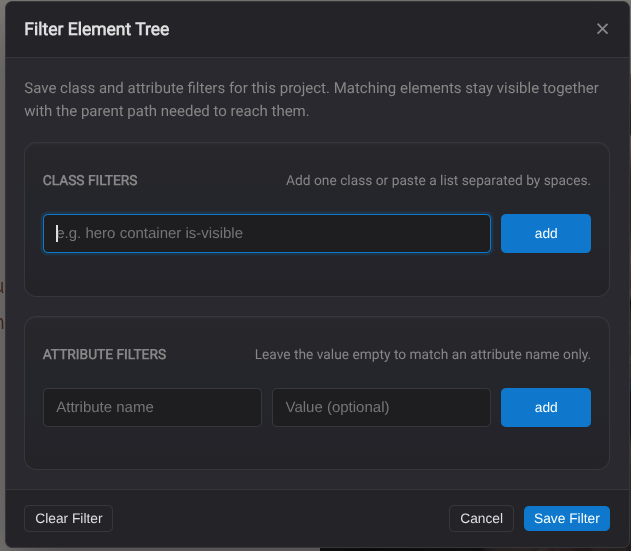
Use the element tree filter to narrow the tree to elements that match a class or attribute. This helps find repeated components, specific data attributes, or deeply nested elements without manually expanding the whole page.
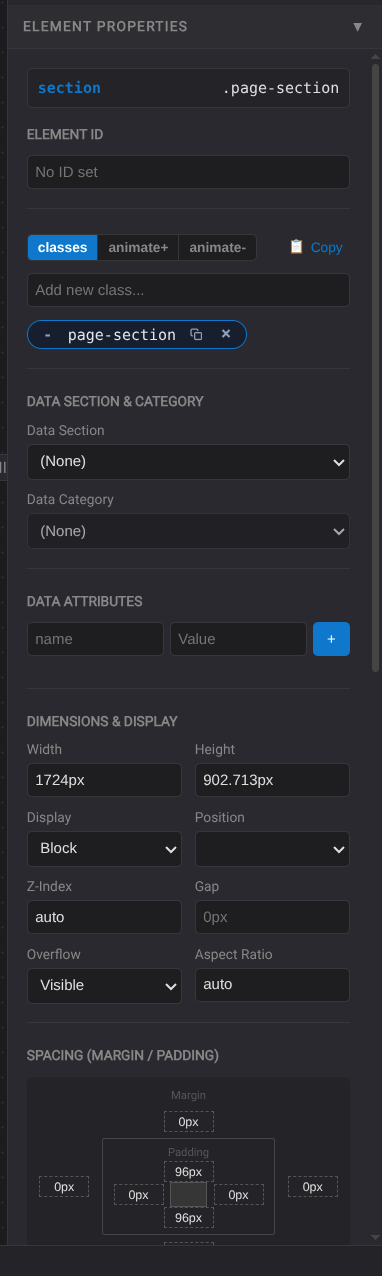
Element Properties
The Element Properties pane can edit:
- Element ID, which also becomes the target for anchor links to that element.
- CSS classes, animation classes added on view, and animation classes removed on view.
- Data section and category.
- Data attributes.
- Dimensions, display, position, z-index, gap, overflow, and aspect ratio.
- Image fit controls.
- Margin and padding.
- Typography.
- Background and border.
- JavaScript events.
- Link settings.
- Image source, alt text, and loading behavior.
- Inline script settings.
Text Editing
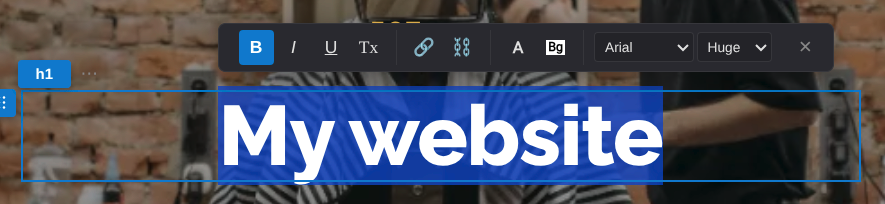
Inline text editing includes a floating toolbar for bold, italic, underline, links, text color, background color, font, and size.
CSS Editor
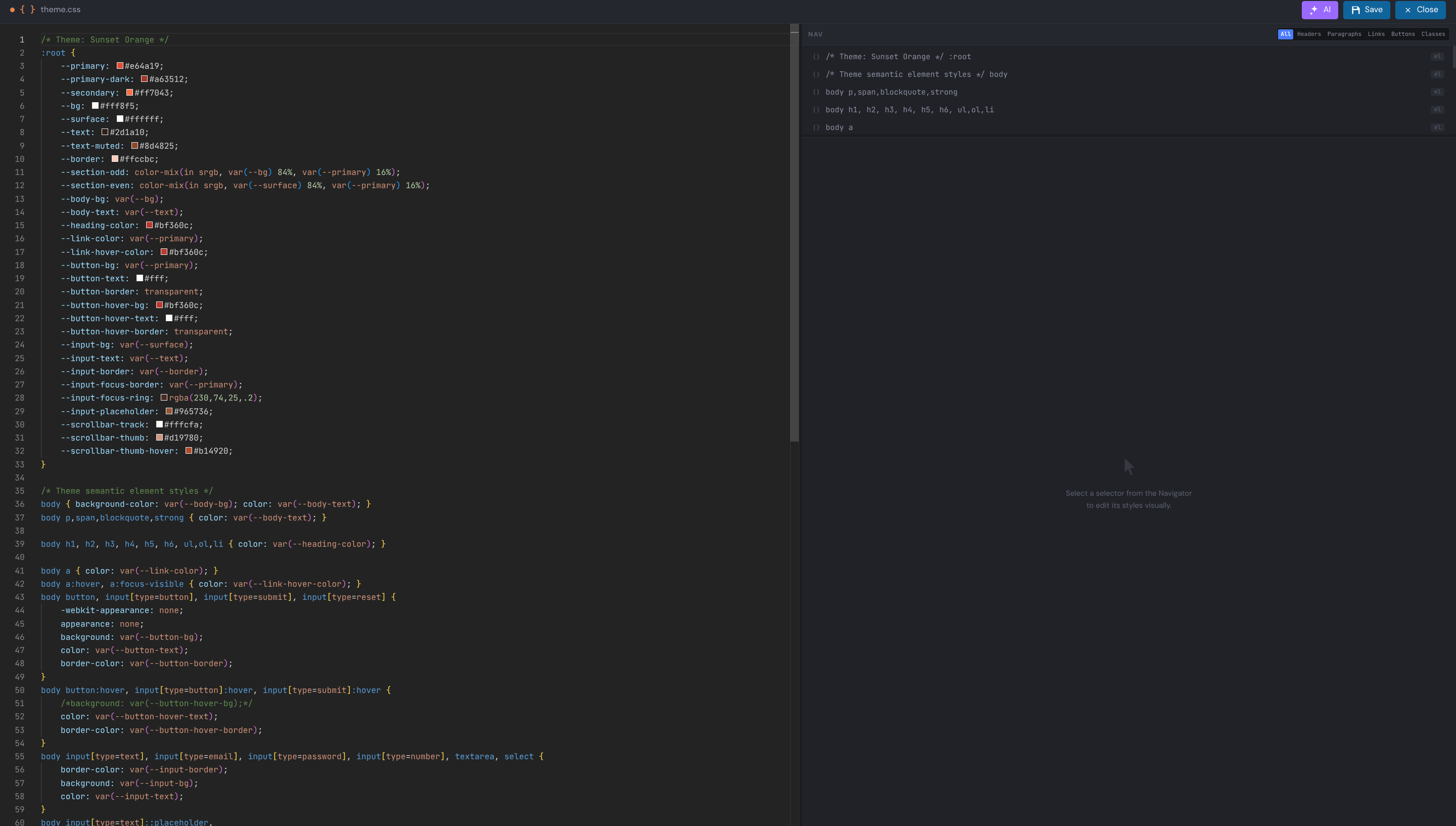
CSS files open in the CSS editor, where users can edit stylesheet code and ask AI for CSS help.
JavaScript Editor
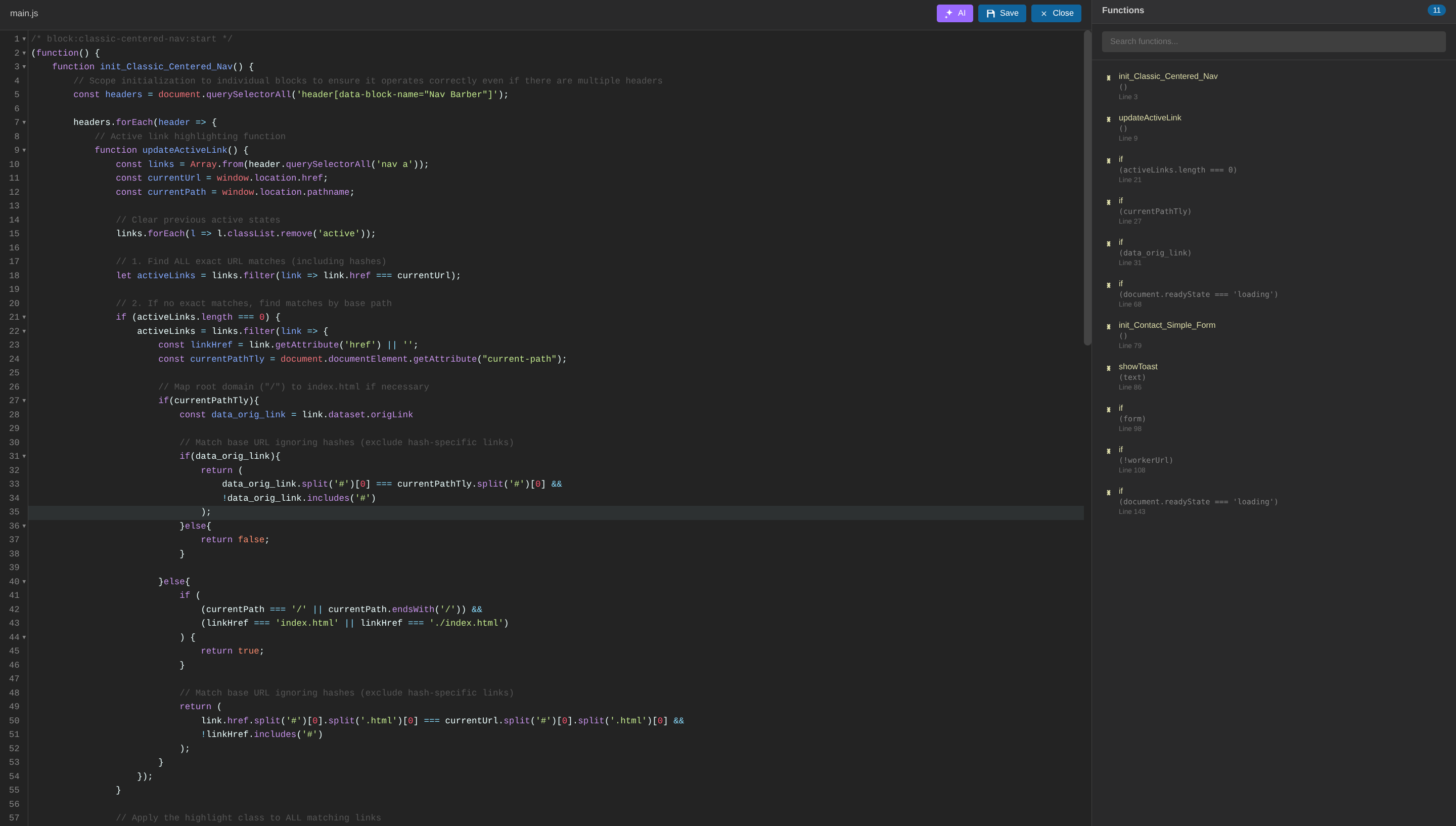
JavaScript files open in the JS editor, where users can edit script code and ask AI for JavaScript help.
SVG Icon Editor
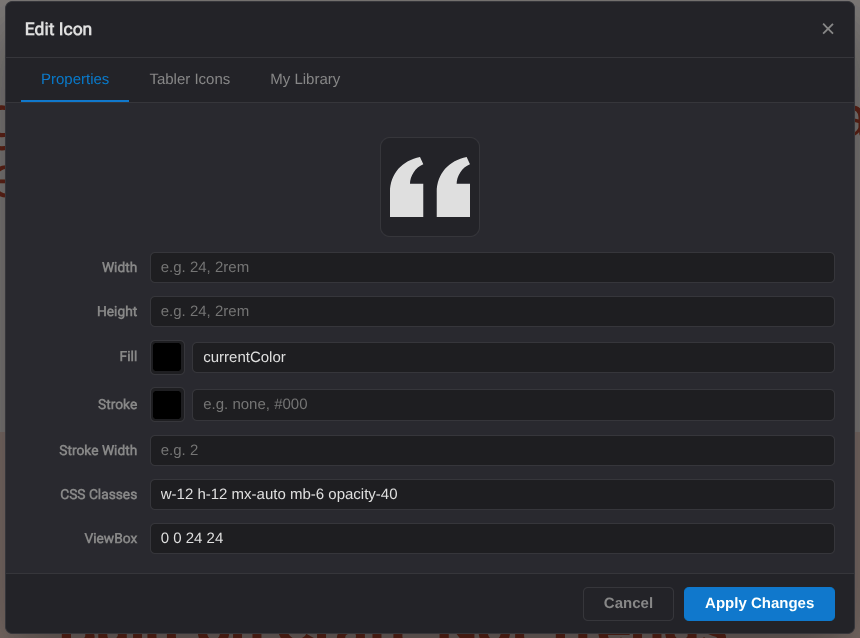
SVG icons can be edited in a dedicated modal. Users can adjust width, height, fill, stroke, classes, choose from Tabler icons, or save custom icons to the personal icon library.
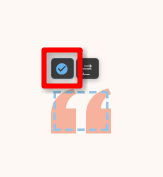
The SVG icon editor modal lets you change icon colors, replace the SVG with another icon, or import a custom SVG. It is useful for matching icons to the page design without manually editing SVG code.
SEO Panel
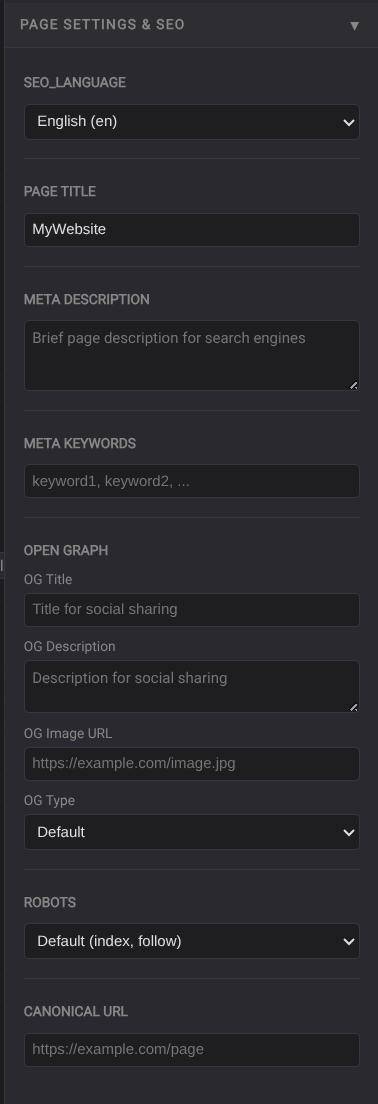
The Page Settings & SEO pane edits page title, meta description, keywords, Open Graph fields, robots behavior, canonical URL, and language-specific SEO fields when i18n is enabled.