Advanced Features
This page covers supporting editor features that affect preview behavior, visibility, data-driven sections, and guided onboarding.
Responsive Preview
The canvas can switch between desktop, tablet, mobile, and fullscreen views. Tablet and mobile modes support presets and custom widths, and the current canvas size is displayed in the top bar.
Preview Mode
Preview mode lets the page run closer to the exported website. Editing panes show a preview overlay while visual editing is locked. Use preview mode to test menus, sliders, scripts, theme switching, and language switching.

Scripts In Edit Mode
Scripts are normally treated carefully because they can change the page while the editor is open. Teluyo includes a warning modal before enabling scripts in edit mode.
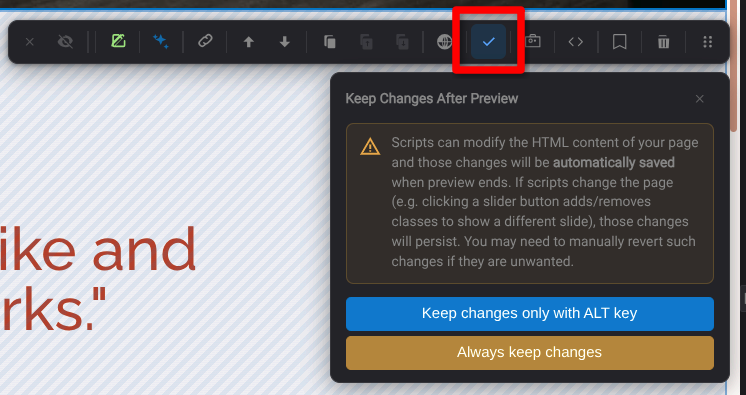
Keep Changes After Preview
A section can be configured to keep script-driven changes after preview. This is useful when a section's scripts intentionally update the HTML state. It can be set to always keep changes or only keep them when the user holds the Alt key.
Force All Elements Visible
The Force All Elements Visible control temporarily shows elements hidden by CSS while editing. This helps users select and modify hidden menus, slides, tabs, or animation states without changing the exported page.

Hidden Elements Warning
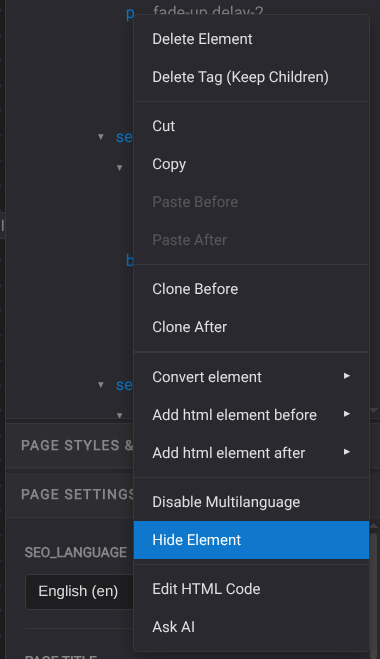
You can temporarily hide an element by right-clicking it on the page or in the element tree, then choosing Hide element. The element is hidden only in edit mode, so this does not change the exported website.
This is useful when an element covers another element you need to select or edit. Hide the covering element, make the edit underneath it, then reveal hidden elements again when you are done.
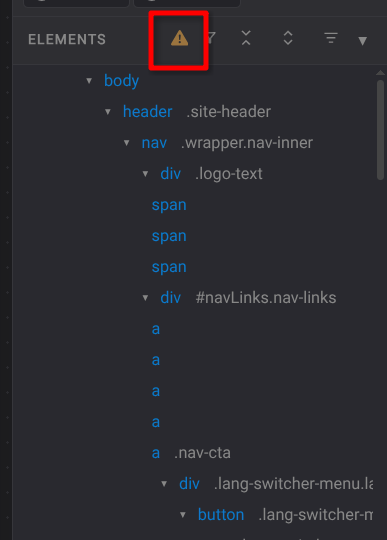
When elements are temporarily hidden in the editor, Teluyo shows a hidden-elements warning. Users can reveal all hidden items from the warning popup.
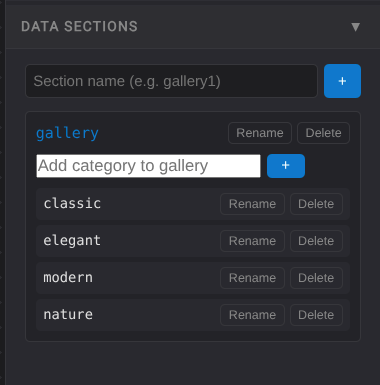
Data Sections
The Data Sections panel lets users create named sections and categories. Elements and buttons can be connected to data sections so buttons can filter grouped content.
Cookie-Conditional Sections
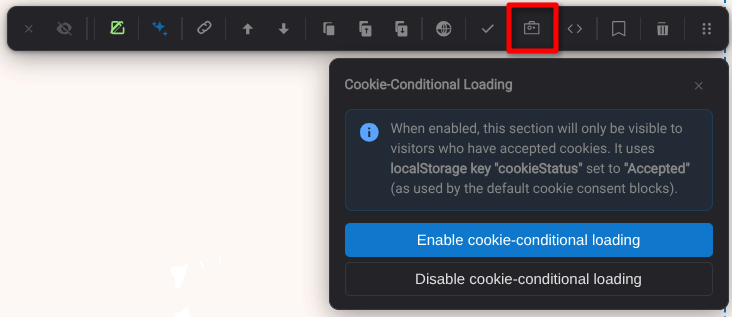
Sections can be marked as cookie-conditional. When enabled, the exported site shows the section only for visitors who have accepted cookies through the site's cookie consent flow.
Guided Tour
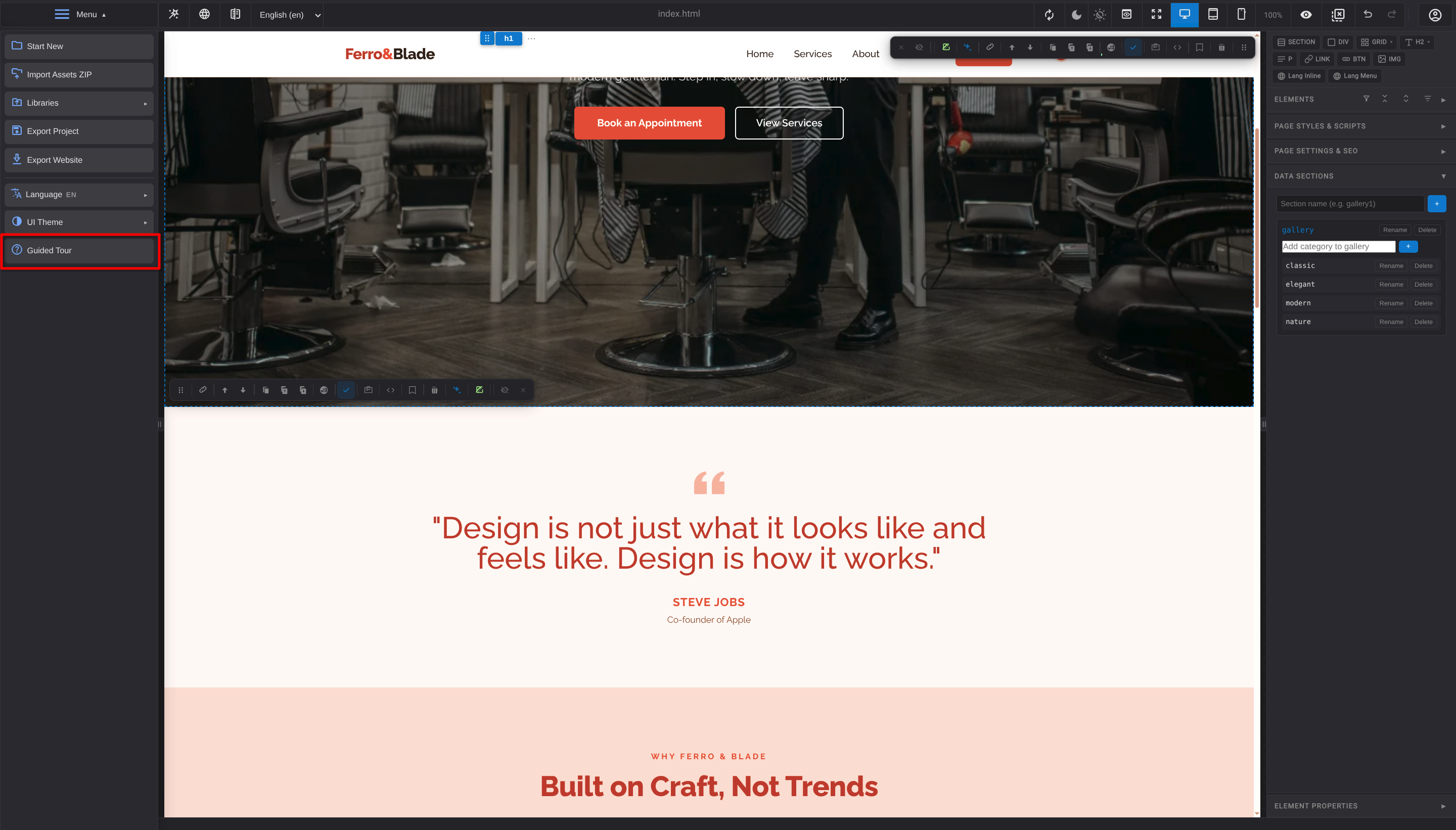
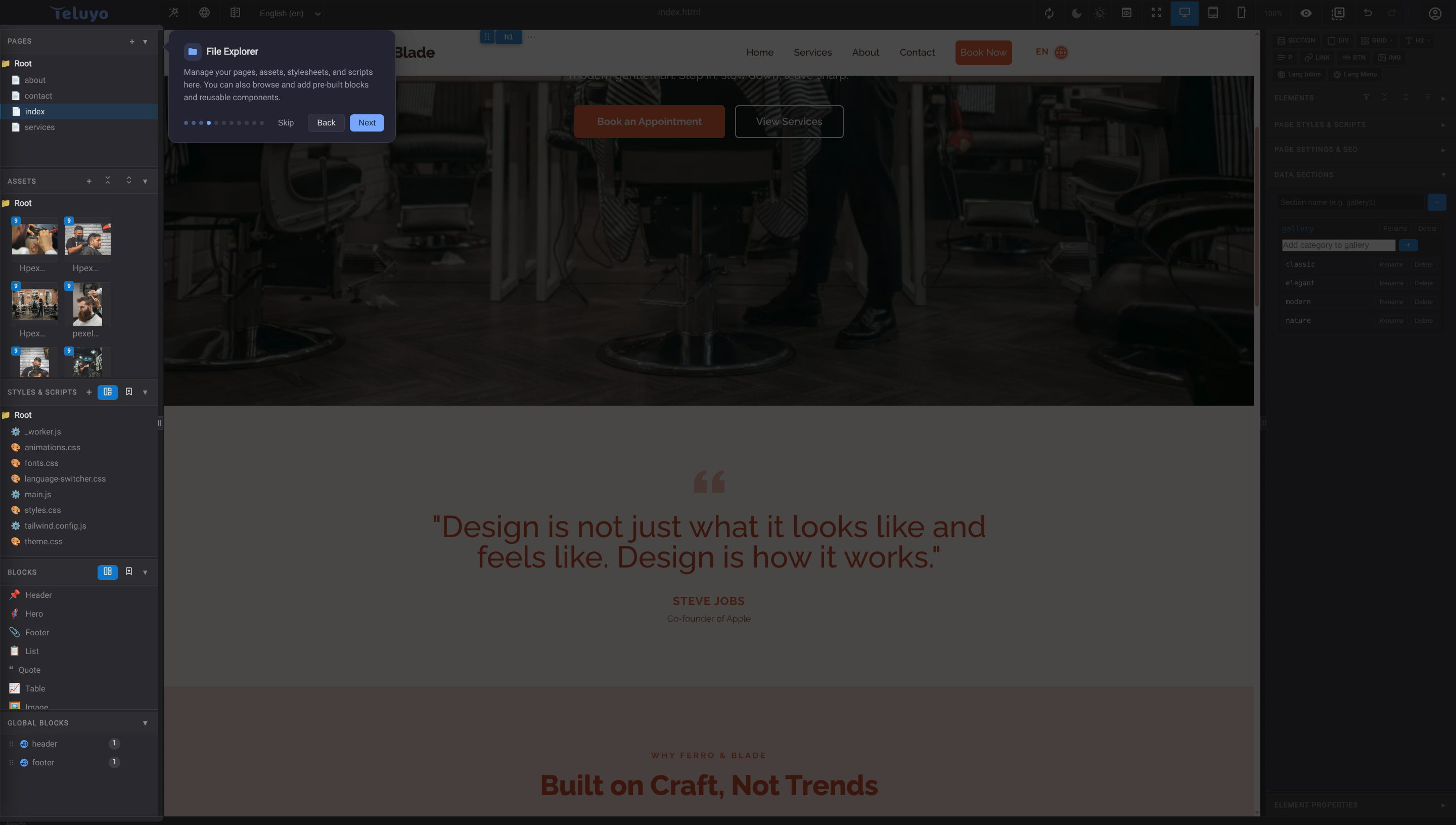
The project menu includes a guided tour. The walkthrough highlights important parts of the interface and is useful for first-time users or support documentation.
Single-Tab Protection
Teluyo includes a single-tab guard to avoid conflicts from editing the same browser session in multiple tabs. If another tab already owns the session, the app shows a single-tab protection screen.